Tuesday, December 28, 2010

Gingerbread is the first Android version to feature the Ext4 file system

Gingerbread is the first Android version to feature the Ext4 file system
Android 2.3 Gingerbread, it turns out, actually has some optimizations up its sleeve that help dual-core processing. We were wondering what happened with that, considering the barrage of dual-core handsets about to hit the market from LG, Motorola and Samsung. Gingerbread swaps the YAFFS file system, currently used in most Android devices, for Ext4, the current Linux kernel file system. Well, with a name like "Yet Another Flash File System" (YAFFS), the current version was destined to go.

YAFFS is single-threaded, which would have been a bottleneck when trying to record those full HD video clips, and save them to the flash memory, whereas Ext4 doesn't have this limitation. Thus the new file system is more suited for usage with the multicore ARM-based chipsets that will be creeping into handsets and tablets next year. According to one Googler that has been pulled in to help with Ext4 for Android, as long as developers are mindful about how Ext4 does buffering and sync, there is no need to worry about data loss.

Ext4 will actually improve the handling of data loss, if developers make sure their application data is getting to persistent storage on time. Linux writes to so many files at once, that not all of them get written to permanent memory, and there is a risk for data loss. For example, when you drop your Android phone and the battery escapes, there is a chance those files that were not written in permanent memory, will evaporate.

There are newer Linux file systems out there, like Oracle's Btrfs, but Google went with the current generation Ext4 as more mature, not to mention that's what El Goog started using in its servers this year. It makes us all warm and fuzzy inside that Android got Google's server file system, and suddenly the little green robot can claim much more geek-cred with us.

Source: PhoneArena

Zeam Launcher

I had initially purchased a Viewsonic G-Tablet for my parents and an Archos 70 Internet Tablet for myself. Over my Christmas bread, I delivered the G-Tab to my parents, funny thing is, when they saw the Archos device they fell in love with the smaller form-factor. So, I ended up keeping the G-Tab and leaving my Archos 70 behind (I will visit you later!).

So being the inquiring boy that I am I started investigating, installing and reinstalling stuff onto the G-Tab. I started out installing the VEGAn BETA 4 build; info can be found here (http://vegantab.gojimi.com/) and here (http://forum.xda-developers.com/showthread.php?t=884103). I generally like the VEGAn build, nice interface and fun, though still buggy.

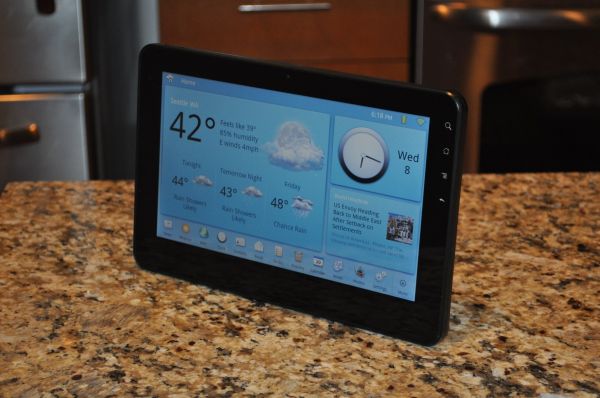
I finally loaded the TnT Lite, build 3.1.2. details can be found here (http://forum.xda-developers.com/showthread.php?t=842004). I have found that this build is fairly stable and very usable. I unfortunately do not like the launcher interface though. So I started looking into alternative launchers. I found several, some at cost, some free. I finally settled on the Zeam Launcher Version 2.8.4, which is free and can be downloaded from the Google Marketplace, details can be found here (http://forum.xda-developers.com/showthread.php?t=664149). I particularly enjoy the ability to extend the launcher to full screen; this gives the UI a very clean feel. Some of the other features that I enjoy are the ability to configure how many rows and columns to use for icon placement. There are many other features that I will not cover here, but I would strongly encourage any person that has a G-Tab to install this launcher, I don’t think that you will regret it!

Happy Tab-ing, and Happy New-year!

Sunday, December 26, 2010

HD movie file splitter for Archos

Archos have release a ArchosHDVideoTransfer, it will split file MKV file into 3GB pieces. It come with three version OS: Windows, Mac, Linux. I have tested with the windows version, splitted a 8Gb MKV files and it have split into three pieces. The split filename are like movie.mkv, movie.mkv.1, movie.mkv.2. I have copied the movie into the external SDcard, it the Archos able to play the 720p movie file without any issue. I able to seek through the split video file without any issue

The split file will not work on Windows Media Player or Media Player Classics, the movie will stop on the part1 of the split file.


You can download the application from Archos website under "ArchosHDVideoTransfer"

Wednesday, December 22, 2010

Fix - for GTab won't turn back on

There is a reset button, but you have to crack open the device to get to it. I'm serious. This is a known issue with stock (and I assume TnT Lite 1.x is also affected, going on what you've written) - I've had this happen myself and I've called CS about this, already.

imo, you have three options:

1- Wait for the battery to die and it might "fix itself" (stress the "might" part). The device is definitely on, in this sleep mode that you can't get out of. I know this because when it happened to me, the device was recognized as a USB device when I connected it to my system and ran "lsusb" (Ubuntu). Second, when I first cracked my device open, I could see a green light inside so that told me it was actually on and drawing power.

2- Crack it open and hit the reset button in the middle of the board - this will most likely fix it immediately, but as you may expect it will void your warranty. There are four screws behind the rubber feet that you have to take off, and a bunch of clamps around the device that you'd need to pry open with something like an iPod plastic prying tool. It's a bit of a PITA to open and you have to be careful.

3- Return it / exchange it. Of course, all your data is there so hopefully there's nothing you care about or stuff that's confidential.


EDIT: The battery should drain completely within 24 hours. Once that happens, you can use the power button again to start it up and then you'd want to connect to AC to recharge, of course.

Source: XDA

Tuesday, December 21, 2010

Viewsonic is listening to improve Gtablet out of the box

Viewsonic will be release another update on Dec 24, enable to use default Google interface or the hopefully better TnT with there next release. The Adobe flash certification will not be complete until end of Jan 2011. Viewsonic will be release a page for posting new software update and kernel update.

If Dec 24 release is a new kernel, TnTLite custom firmware will release version 3.10

Source: Viewsonic

Laputa e-book reader

I seem to be discovering more and more interesting applications; I like it!

Yesterday I was browsing the market using my Viewsonic GTab and came across a new (to me) ebook reader. Out of curiosity I loaded it onto my GTab, and launched into the application.

The interface is similar to other e-book readers, but with the added bonus of some very nice looking 3-D graphics. I poked through the interface until I figured out how to import an ePub. Once i completed the import I was very pleased by the format of the book. Keep in mind that the final user experience still depends on the formatting of the book itself, but there are no noticeable detriments in using this reader.

After seeing the very nice UI on the GTab, I immediately installed the application on my Archos 70 Internet Tablet, imported a book that I had previously been reading using Aldiko. I found that some of the formatting errors that were apparent using Aldiko were not present using the Laputa reader. One huge flaw using Aldiko is that when viewing an ePub in landscape mode the margins are not rendered properly, leaving about 30% of the text wrapped to the left of the screen. None of this is apparent using Laputa.

Now, keep in mind that Aldiko is releasing a 2.x version upgrade soon(ish) and it will be interesting to compare these two wonderful applications after the upgrade is released.

Here is a link to the Laputa web site:
http://www.health-team-android.com/Laputa/Main.htm

I have also recently written a small piece on conversions usign Calibre, you can find that here:
http://gtablets.blogspot.com/2010/12/e-book-conversions.html

Again, Happy reading!

Monday, December 20, 2010

gAppsInstaller version 5 for Archos Gen8

This includes only the Market, Calendar, Talk, GenieWidget and "required gSync" files. Any apps that are in the Froyo Market are NOT included. Honestly, this is better as it makes a smaller appInstaller package and its more compatible.

You can download the following from the Market -- Gmail, VoiceSearch, YouTube and Maps(Navigation)

SUMMARY
  • Stable Market (v2.2.7), no GUI defect
  • Misc market apps do not FC (OSMonitor, WeatherBug, TweetDeck, etc)
  • Voice Search works, but infamously badly (does some weird full screen thingy)
  • Still no Protected Apps in Market - BAD (dont know of a workaround for this, sorry.)
  • WiFi location seems to not work with the newer market installed

  1. Download - http://code.google.com/p/archos-apps...downloads/list
  2. Copy download to your device via USB (if you didnt download directly using your Archos)
  3. Use 'Files' app to locate gAppsInstaller, then execute/install it
  4. Choose install core apps or choose to install your own packaged 'apps.zip' file located on the internal drive (not sdcard). There maybe a short delay after you tap an install button (its installing and you'll be notified when its done, about 5-10 seconds)
  5. REBOOT!!
  6. Follow the Market FIX instructions below
MARKET FIX:
This will get you most missing apps from the market, except some "protect market apps" like NYTimes.
  1. Setting-->Manage Applications-->All-->Market (Clear Cache then 'Force Stop' -- DO NOT clear data)
  2. Setting-->Manage Applications-->All-->Google Services Framework (Clear data then 'Force Stop')
  3. REBOOT again
Source: XDA

E-Book conversions

Since I have started using the Android device(s) as e-readers I have had many people ask me about the different softwares that I use. By far, my favorite reader is the Aldiko reader (See previous posts). One flaw that I have found with the Aldiko reader is that it will only allow for import of ePub formatted books. In my opinion this is very minor, given the usefulness of the tool.

So, how to convert other files over to ePub format (Not including encrypted or protected files) files to an ePub format? The too that I have found that works quite well is Calibre.

Once you have downloaded the Calibre tool, simply install it, import the books (drag-and-drop works well) into the tool and select your conversion options and format then begin conversion.

I have noticed that some documents will not be perfect, but hey, it's free!

Aldiko e-reader redux

I posted an article previously regarding the Archos 70 Internet tablet and the Aldiko e-reader application. In that post I outlined how best to configure the reader. Since that post I have found a much better method.

Have you ever had a 'Duh...' moment? This was one of those. When you purchase the Archos device it comes pre-loaded with AppsLib as the full Market has not been cleared for tablet devices yet. Out of curiosity I loaded the application from their library and it appears that the application there (at least the Aldiko application) are modified to account for the soft-buttons.
Here is a link to AppsLib: http://appslib.com/
So, if you have installed from the Google Market, do yourself a favor and install AppsLib and install the Aldiko application from there.

I have tested to ensure that AppsLib is compatible with the Google Market and I have noticed no adverse effects.

Happy reading!

Sunday, December 19, 2010

TnTLite 3.0 beta is out

Link to the beta: http://www.mediafire.com/?6jf6wojv899dz8m

Quick changelog on this:

- This is an update.zip file. Clockworkmod mod users can just run it, standard recovery users would need to rename it to "update.zip" and grab a /recovery/command file from another ROM to run it.
- I kept the TnT music app, because it's really not that bad and will run without the Homescreen.apk
- Gingerbread launcher runs by default, or you can try the TnT vanilla one (use "Home Switcher" to change them).
- Flash should auto-install on a clean system. This could take up to 2 minutes to run the first time, so just be patient. YMMV. You don't need a network connection - there's actually a VEGA-based script that runs, but I had to tweak it to not actually run for 1 1/2 minutes or else it would fail.
- Based on the new kernel and TnT build that came out today (and the fixes that came with it like media apps being able to scan sdcard2).
- Hacked TSCalibration is there.
- Gapps news and weather has been re-added. So far, no issues.
- All the old app changes are there, except for the long press for recent apps. That's a framework change so I'll need gojimi's help on that (probably a 3.0.1 supplement).
- New Maps, new 2.2.7 Market. The install button is there now, but the stars are still chopped off.
- Updated Nvidia drivers. Quandrant scores are still 2400 but neocore scores might get a bump.

Source: XDA

Tegra2 chip likely the standard for next year Andriod devices

First Motorola Tablet using Tegra, then LG dual-core phone, and now Samsung have announced using Tegra 2 for there next-gen Tablet

Samsung nabs Tegra 2 for Galaxy Tab 2, Google makes Tegra the Honeycomb reference platform?

It sounds like all of NVIDIA's wrangling and cajoling finally paid off, if a couple of analysts are to be believed -- both say the company's dual-core Tegra 2 chipset is racking up wins in the tablet space. We've seen it seemingly raise the bar for smartphone silicon in the LG Star and tease us in slate after slate, but Citigroup's Glen Yeung says that Samsung has "placed a sizeable order with Nvidia for Tegra 2 chips in the first half of 2011, geared for both tablets and smartphones," and BMO Capital Markets analyst Ambrish Srivastava anticipates the next Galaxy Tab will be one of the devices that use it. If that sounds obvious, remember that Samsung was supposed to be producing a dual-core chip of its own. What could cause companies to embrace Tegra 2, if that's indeed what's happening? Any number of reasons, to be sure, but Glen Yeung also says that Google has made Tegra the reference design for Honeycomb, aka Android 3.0, and so Tegra 2 may sound like a fast track to victory in the budding tablet space. Here's hoping it's a good choice for consumers, too.

Source: Engadget

Archos Gen8 Firmware 2.0.71 Review

You can get this latest firmware here:
http://update.archos.com/8/gen8/gen8_2.0.71/firmware_archos_android_gen8.aos

  • Most Gameloft games no longer works with this update
  • Still no official Adobe flash plug-ins
  • RMVB codec is build-in with hardware acceleration, no longer need rockplayer to software decode :)
  • Wireless issue with WPA/WPA2 is fixed
  • Able to change power management setting for CPU with three different mode (Overdrive, Optimal, Powersave. To change this setting go to Settings -> About device, Power Management (Default is Optimal) .
  • Quanrant Benchmark 1488 for Overdrive, 1264 for Optimal, Powersave 1152

Version 2.0.71 – December 16th, 2010

  • Wi-Fi: fix Wi-Fi stuck after a while when using WPA2/AES encryption mode
  • Wi-Fi: fix cannot connect on channels above 11 due to wrong default regulation domain
  • Power management: for A43/A70/A101 add a setting in about device to allow 3 levels of power management. Overdrive that allows CPU max frequency to be 1GHz with ondemand governor, optimal that brings CPU max frequency to 800MHz with ondemand governor and powersave that set CPU max frequency to 800MHz with conservative governor
  • Indexing: faster rescan is now achieved at USB disconnect
  • Storage: SDCard now supports NTFS (read only) and EXT3
  • Storage: fix sdcard not recognized sometimes when swapping different cards brands
  • Video: fix subtitles on A101
  • Network shares: enhance scanning speed
  • Network shares: handle the case where a server shares are not visible if not authenticated
  • Network shares: allow in wireless settings to define manually a server authentication details
  • Network shares: reload samba and UPnP services when switching between access points without disconnecting
  • Audio: a silent mode (Global Mute) has been enabled in the power button menu. It will impact all streams except alarms in case one select alarms sound always on in alarm settings
  • Application: appslib is now reinstalled after an Android device reset
  • Application: fix quadrant CPU benchmark
  • Power: fix shutdown sometimes happening on short power button press
  • Internationalization: support for Korean codepage tags and subtitles
  • Multimedia: use smaller memory footprint for decoding H264 SD
  • Memory management: achieve more progressive kill in low memory situation
  • Boot: fix deadlock happening sometimes preventing device to complete boot

New TnT firmware update - 3316 - Dec 19

New TnT firmware update to 3316

According to "roebeet" the creator of TnTLite and Vegan rom, this new TnT firmware for Viewsonic GTab is a big update, bigger the previous on last week.

New kernel, Angry Birds preinstalled, sdcard2 allegedly supported by the stock media apps.
This will definitely be the basis for a TnT Lite 3.0.0.

Still no official plugins for Adobe flash yet


Source: XDA

Tuesday, December 14, 2010

Voice Search gets personal

When we launched Voice Search more than two years ago, we wanted it to “just work” right out of the box, without an initial setup process. And so, we built speech models broad enough to accommodate a wide variety of people, regardless of gender, age, and accents, or variations in pitch, pace, and other factors. But we always knew we could build a more accurate model by listening to your voice, and learning how you -- as a unique individual -- speak. So today we’re launching personalized recognition.

If you opt into personalized recognition, we begin to associate the recordings of the words that you ask us to recognize with your Google account. We then automatically use these words to build a speech model specifically for you. This speech model enables us to deliver greater recognition accuracy. Although subtle, accuracy improvements begin fairly quickly and will build over time.

The first time you use Voice Search, you’ll be presented with a dialog to turn on personalized recognition. Google takes your privacy seriously, so you can enable or disable personalized recognition at any time through the Google voice recognition settings on your phone. If you’d like to disassociate your voice recordings from your Google Account, you can do so through the Google Dashboard in the Speech section.

The personalized recognition functionality is currently available for English in the United States. We plan to support other countries and languages in the near future. To enable it, you must have Android 2.2 or higher, and download the latest version of the Voice Search app from Android Market. The new app also includes some improvements to name recognition and speed, especially over 3G and EDGE connections.

So go ahead and download the latest Voice Search app, and let’s get personal!

Source: Google Mobile Blog

Monday, December 13, 2010

Android Quick Tip: How to bypass the "Touch the Android to Begin" setup

Android Quick Tip: How to bypass the "Touch the Android to Begin" setup


Source: Pocketnow.com

Saturday, December 11, 2010

Viewsonic G Tablet 10.1" Multi-touch Android Tablet in JR.com for $389

1GHz Dual ARM Cortex-A9 processor / 512MB DDR2 / 16GB flash / NVIDIA Tegra 2 / USB / 802.11n / microSD slot / Bluetooth / App Store / Android OS 2.2 at JR.com for $389 with Free Shipping
No Tax in most states

http://www.jr.com/viewsonic/pe/VIW_GTABLET?JRSource=linkshare&SiteID=Es5Ekr9eEBk-wkJ8RPGD6h3P1j9%2FfMiIWg#productTabs

Thursday, December 9, 2010

First Look: Viewsonic G Tablet and Tegra 2 Performance Preview


The slate computing market is about to explode, with a literal flood of new tablets releasing over the coming months. Many of them will be Android based, running NVIDIA’s Tegra 2 SoC. NVIDIA made a big deal about Tegra 2 back at CES 2010, but for some reason, it’s taken quite a bit of time for anything running the platform to hit the market. Finally, we have one - the Viewsonic G Tablet. The G Tablet is a 10" slate running Android 2.2 on top of Tegra 2 and a $399 pricetag. For the money, it's packing a lot of power and features. But the real question is how Tegra 2 stacks up against Hummingbird and Snapdragon, along with how much faster the dual-core A9 is than the A8-based SoCs.

Source: AnAndTech

Wednesday, December 8, 2010

Google Maps 5.0 gets Nexus S video demo

Google VP Marissa Mayer took the stage at LeWeb 2010 today, and it was no surprise to see the search and user experience exec pull out a Nexus S. Unlike most Nexus S handsets – such as the unit we spent hands-on time with yesterday – Mayer’s phone is running the incoming Google Maps for Mobile 5.0, and they wasted no time before running through a demo.

Video demo after the cut

The two main features of the updated app were demonstrated, starting with 3D landmarks – which can be panned and moved around with two-finger multitouch gestures – and then looking at cached usability thanks to the new offline mode. According to Mayer, both features are possible because of the switch to vector-based graphics, which have helped shrink data traffic in Google Maps down to 1/100th of the previous amount.

That permits a bigger cache of navigation data, and while it’s not the entire map – unlike, say, Nokia’s Ovi Maps, which can be locally stored – it’s enough to get you through data deadspots or to navigate a pre-planned journey without a connection. Check out both features in the video demo below.


Source: Slashgear

Tuesday, December 7, 2010

Preview Next Version of Andriod - 'Honeycomb' Video Demo

Google’s Andy Rubin came to D: Dive Into Mobile packing some serious hardware, and not just the company’s newly announced smartphone, the Nexus S. He came with a prototype Motorola Android tablet, running a dual-core Nvidia chip and Honeycomb, the next iteration of Android. And he used it to show off a forthcoming update to Google’s mobile maps application.


Source: AllThingSD

Monday, December 6, 2010

Android 2.3 Gingerbread SDK Released

New User Features

UI refinements for simplicity and speed

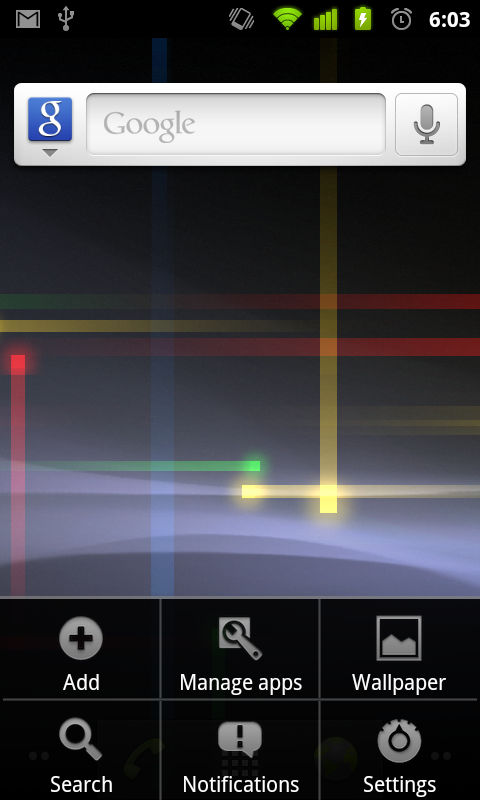
The user interface is refined in many ways across the system, making it easier to learn, faster to use, and more power-efficient. A simplified visual theme of colors against black brings vividness and contrast to the notification bar, menus, and other parts of the UI. Changes in menus and settings make it easier for the user to navigate and control the features of the system and device.

Faster, more intuitive text input

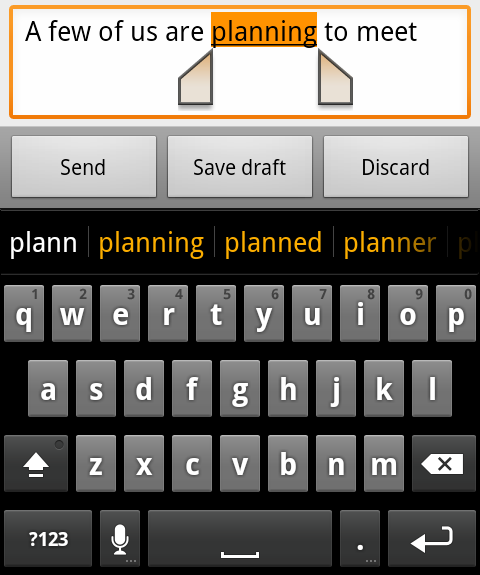
The Android soft keyboard is redesigned and optimized for faster text input and editing. The keys themselves are reshaped and repositioned for improved targeting, making them easier to see and press accurately, even at high speeds. The keyboard also displays the current character and dictionary suggestions in a larger, more vivid style that is easier to read.

The keyboard adds the capability to correct entered words from suggestions in the dictionary. As the user selects a word already entered, the keyboard displays suggestions that the user can choose from, to replace the selection. The user can also switch to voice input mode to replace the selection. Smart suggestions let the user accept a suggestion and then return to correct it later, if needed, from the original set of suggestions.

New multitouch key-chording lets the user quickly enter numbers and symbols by pressing Shift+<letter> and ?123+<symbol>, without needing to manually switch input modes. From certain keys, users can also access a popup menu of accented characters, numbers, and symbols by holding the key and sliding to select a character.

One-touch word selection and copy/paste

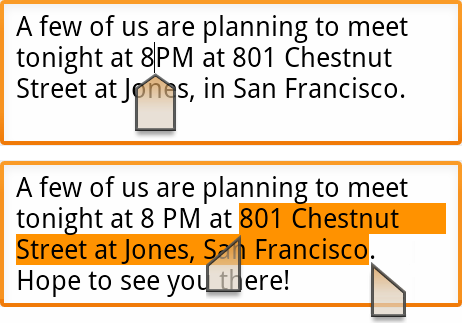
When entering text or viewing a web page, the user can quickly select a word by press-hold, then copy to the clipboard and paste. Pressing on a word enters a free-selection mode — the user can adjust the selection area as needed by dragging a set of bounding arrows to new positions, then copy the bounded area by pressing anywhere in the selection area. For text entry, the user can slide-press to enter a cursor mode, then reposition the cursor easily and accurately by dragging the cursor arrow. With both the selection and cursor modes, no use of a trackball is needed.

Improved power management

The Android system takes a more active role in managing apps that are keeping the device awake for too long or that are consuming CPU while running in the background. By managing such apps — closing them if appropriate — the system helps ensure best possible performance and maximum battery life.

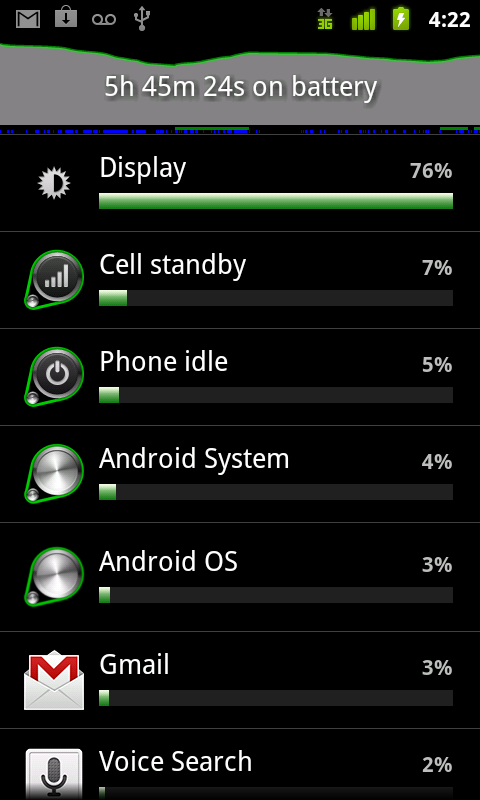
The system also gives the user more visibility over the power being consumed by system components and running apps. The Application settings provides an accurate overview of how the battery is being used, with details of the usage and relative power consumed by each component or application.

Control over applications

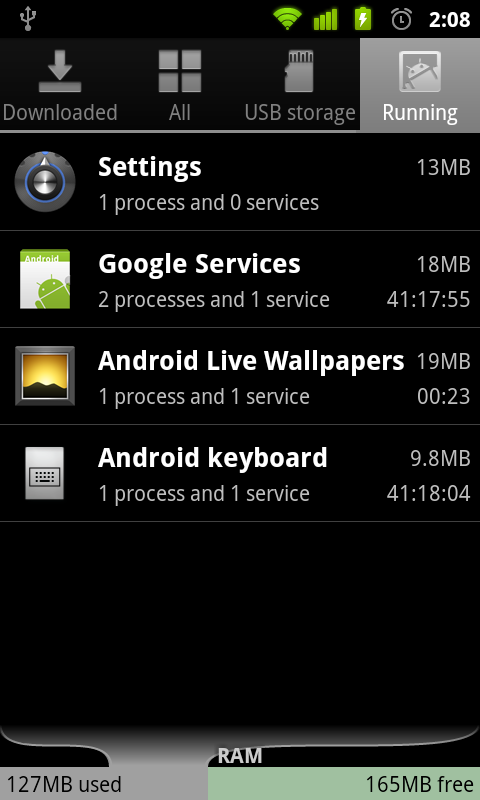
A shortcut to the Manage Applications control now appears in the Options Menu in the Home screen and Launcher, making it much easier to check and manage application activity. Once the user enters Manage Applications, a new Running tab displays a list of active applications and the storage and memory being used by each. The user can read further details about each application and if necessary stop an application or report feedback to its developer.

New ways of communicating, organizing

An updated set of standard applications lets the user take new approaches to managing information and relationships.


Internet calling

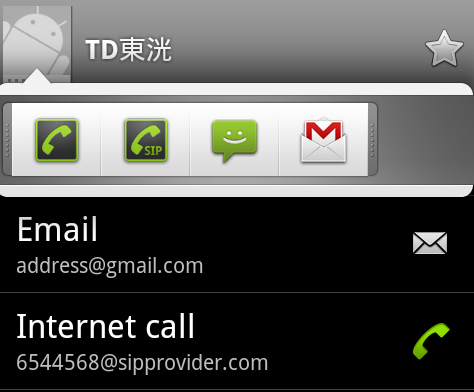
The user can make voice calls over the internet to other users who have SIP accounts. The user can add an internet calling number (a SIP address) to any Contact and can initiate a call from Quick Contact or Dialer. To use internet calling, the user must create an account at the SIP provider of their choice — SIP accounts are not provided as part of the internet calling feature. Additionally, support for the platform's SIP and internet calling features on specific devices is determined by their manufacturers and associated carriers.

Near-field communications

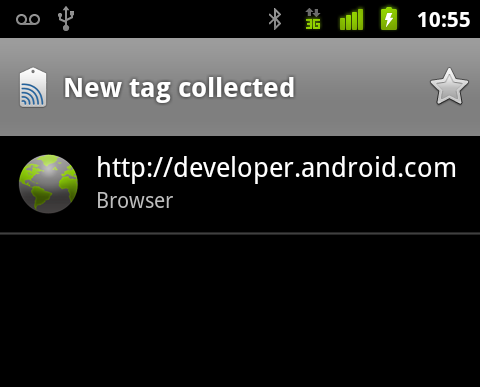
An NFC Reader application lets the user read and interact with near-field communication (NFC) tags. For example, the user can “touch” or “swipe” an NFC tag that might be embedded in a poster, sticker, or advertisement, then act on the data read from the tag. A typical use would be to read a tag at a restaurant, store, or event and then rate or register by jumping to a web site whose URL is included in the tag data. NFC communication relies on wireless technology in the device hardware, so support for the platform's NFC features on specific devices is determined by their manufacturers.

Downloads management

The Downloads application gives the user easy access to any file downloaded from the browser, email, or another application. Downloads is built on an completely new download manager facility in the system that any other applications can use, to more easily manage and store their downloads.

Camera

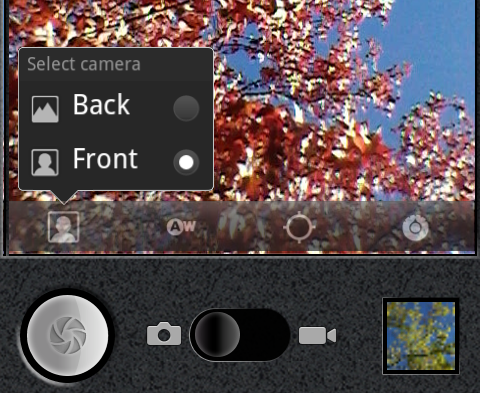
The application now lets the user access multiple cameras on the device, including a front-facing camera, if available.

Source: Android Developers

Saturday, December 4, 2010

Archos gAppsInstaller v3 - updated to Market v2.12

Avoid gAppsInstaller v2.5, it have break by system need to do a reset of the device

I have tested v3.0 with no issue, just need to follow the instruction below and get the gmail, map, voice search, and youtube direct from the google market

This includes only the Market, Calendar, Talk, GenieWidget and "required gSync" files. Any apps that are in the Froyo Market are NOT included. Honestly, this is better as it makes a smaller appInstaller package and its more compatible.

You can download the following from the Market -- Gmail, VoiceSearch, YouTube and Maps(Navigation)

SUMMARY
* No Market GUI defect - Good
* Voice Search works - Good (download from Market)
* Missing Apps in Market - Good (if you do the fix correctly!)
* Protected Apps in Market - BAD (dont know of a workaround for this, sorry.)

INSTALL INSTRUCTIONS:
WARNING: You cannot install this appInstaller if you installed gApps4Archos or any other gApps installer. Anytime you switch appInstaller programs, you MUST reset your device back to stock. If you've NEVER installed ANY market/gApps installer, then your good... no need to reset.

NOTE: If you've ONLY used my appInstaller, then you can REMOVE the old files using my app and re-install the apps at the same time, then REBOOT.

    1) Download - http://code.google.com/p/archos-apps-installer/downloads/list

    2) Copy download to your device via USB (if you didnt download directly using your Archos)

    3) Use 'Files' app to locate gAppsInstaller, then execute/install it

    4) Choose install packaged apps or choose to install your own packaged 'apps.zip' file located on the internal drive (not sdcard)

    4a) There maybe a short delay after you tap an install button (its installing and you'll be notified when its done, about 5-10 seconds)

    5) REBOOT!!

    6) Follow the Market FIX instructions below
MARKET FIX:
This will get you most missing apps from the market, except some "protect market apps"
    Setting-->Manage Applications-->All-->Market (Clear Cache then 'Force Stop' -- DO NOT clear data)
    Setting-->Manage Applications-->All-->Google Services Framework (Clear data then 'Force Stop')
    REBOOT again

Market Fix video: http://www.youtube.com/watch?v=7l-nySibzeA&feature=player_embedded#!

Archos Internet Tablet "FULL FORMAT DEVICE" Require manually reload Archos firmware

This is Erase all systems files and Format the ROM and Internal Memory
It will require to manually reload the firmware from Archos website

http://www.archos.com/support/support_tech/updates.html?country=us&lang=en&#firm

You will need to connect to your computer to copy the firmware into the device

1) unplug your USB and Power
2) hold power for 5-10 sec until screen turns off (green light will be OFF)
3) press/hold power and volume-up until Archos screen appears
4) select (using volume up/down and power) Format System --> 'Reset Device'
5) connect your Archos device to your computer via the Micro USB Cable
6) copy i.e. "firmware_archos_android_gen8.aos" into the root of the "A70S" drive
7) Safely Eject the "A70S" drive
8) select "OK" on the Archos to disconnect the USB connection
9) connect your DC power adapter to the Archos device
10) the firmware will automatically load and reboot

GTab TnTLite (updated 12/2/10, latest version is 2.2.0)

I have install this new firmware, it have been very fast and smooth
Quadrant Benchmark is 2445 with TnTLite 2.2

Make sure to install with
Clockworkmod v.08, the latest version v1.2 will not work

Instruction
------------------------------------------------
Copy the update.zip file into the internal SDCARD
Boot up the system with Clockworkmod
wiped data
wiped cache
wiped dalvik cache
choose "apply sdcard:update.zip"
reboot
------------------------------------------------

This is an alternate firmware based on the standard TnT release. It makes the following changes (as of 2.20):

- Removes the TnT homescreen and replaces it with a stock Google launcher.
- Removes the over-the-air (OTA) updater. That app sends your mac address, in clear text, to a TnT web site frequently and is probably not the best idea from a security standpoint.
- Removes most of the TnT stock apps and replaces them with standard Android replacements (the only exception being the web browser which cannot be changed yet).
- Google Marketplace has been added. It is crippled by default, but it's fixable with this hack: http://forum.xda-developers.com/showthread.php?t=845175.
- Live Wallpaper has been added.
- Development and Spare Parts apps have been added.
- Rooted and has SuperUser app preinstalled.
- Busybox pre-installed. Thanks to bekit for his work on cm6.1!
- Segoe UI font added, replacing the default Android font.
- Nvidia OpenGL November update added. This should allow Angry Birds to run without the blank video problem.
- Updates Estrongs File Manager to a newer version.
- Adds back the /system/xbin folder, which VS removed for some reason. Internal binaries like “sqlite3" now work.
- Adds a YouTube app. YMMV on this, as it sometimes gets choppy playback for reasons unknown.
- “Addfree” type hosts file change (this limits adware or blocks them out completely.)
- TnT boot screen replaced with standard boot screen.
- Adds additional Tegra driver updates that significantly improves overall performance. Kudos to mcb00f and Xiaoiu in the zPad arena for their help with the PP, and of course Paul from MoDaCo.com for the original performance pack!!
- Includes a TnT Lite version number in the "About Tablet" area.

For more information please see the source forum
http://forum.xda-developers.com/showthread.php?t=842004

Archos "Blinking Screen of Death" - repair

Its not really a repair, but a reset (for those who don't know how to reset their device.

1) unplug your USB and Power
2) hold power for 5-10 sec until screen turns off (green light will be OFF)
3) press/hold power and volume-up until Archos screen appears
4) select (using volume up/down and power) Format System --> 'Reset Android'

This only resets the core Archos system, it doesn't erase the firmware or mounted drive data (music, pictures, etc).

Super safe to do!

This will not re-install the missing 3rd party apps, you'll have to do a firmware update to get those back... go here for that -
http://forum.archosfans.com/viewtopic.php?f=63&t=42036

Friday, December 3, 2010

ClockworkMod Recovery for GTab

Install ClockworkMod Recovery which is basically a boot manager that allows you to install a custom ROMs, backup a ROM, partition the device, and includes other various utilities. Here is a screenshot of ClockWork Recovery: Clockwork

In CW Recovery:
-Wipe Data Factory Reset
-Wipe Cache

Clockworkmod v.08 only update.zip (for technical users only!) : http://www.mediafire.com/?dvleg4oatkfxm7w
This is a replacement for standard recovery. It adds the ability to backup and restore system images.

Use at your own risk!
To install: extract the files to internal SDcard, Shutdown, Turn on with power + vol up.

Another Method: extract the files to external SDcard.
Edit the file "Recovery\command" with notepad and change the source SDCARD into SDCARD2
Shutdown, Turn on with power + vol up.

Aldiko Reader on Archos 70 Internet Tablet

I recently purchased an Archos 70 Internet Tablet in lieu of a eBook reader (My wife got the Kindle instead) so that I might have more fun than just reading books. Using the initial release, which was Android 2.1, I had no problems with the Aldiko reader. After the update to 2.2 (Very nice...) I have noticed some oddities.

Using the Aldiko reader from the Google Marketplace (Yay!, look for GappsForArchos2.APK) I have noticed that, when viewing in portrait mode, the text is cut off at the bottom of the page. Here are the settings that I use to mediate this issue:

- Launch Aldiko
- Open the 'Settings' dialog
-- Go to 'Font Settings'
--- Set 'Font Size' to 20
--- Set 'Font Weight' to Bold
-- Go to 'Layout Settings'
--- Set 'Line Spacing' to 1.6
--- Set 'Vertical Margins' to 30

All should be good; go forth and READ!

Thursday, December 2, 2010

Accessories for Archos Gen8 Devices

The car changer for my Archos 70
http://www.newmp3technology.com/mc101.htm

JBMMFR => -10 %
and use this link, shipping is flat $5 for entire order
http://www.newmp3technology.com/index.php?PARTNER=jbmm

Google Framwork Error on startup using GTab with TnT Lite 2.1.1

I loaded the TnT Lite firmware this morning, forst installing the base 2.0.0 from:
http://www.mediafire.com/?f7pd9lxqduo09o7

Then installed the 2.1.1 TnT Lite supplement from:
http://www.mediafire.com/?ful8cp9d05v8424

Upon installation of the 2.1.1 supplement and initial boot, I recieved a FC (Force Close) error regarding the Google Framework. Follow the directions below to resolve this error:

- Launch 'Settings' applet
- Open 'Applications' panel
- Open 'Systems Applications'
- Open 'Google Services Framework'
- Press the 'Clear data' button
- Press the 'Clear cache' button
- Restart your GTab

This should resolve the errors.

Cheers!

Apps missing from the Market? Here is the fix...

This solution has been posted in many places. Here is the fix:

- Settings -> Apps -> manage applications -> Running -> Market
- Clear Cache
- Force Stop
- Back -> Google Service Framework
- Clear Data
- Force Stop
- Try running market. It should give you an error. That's fine and what it should do. Reboot the device

Protected apps will still be missing from the market, but the rest should hopefully be available for you.

This solution works for most everyone.

Bluetooth GPS for Android

Bluetooth GPS for Android is an application for using an external bluetooth GPS on Android devices.

The application starts a service, then connects to a Bluetooth device (NMEA GPS) and creates a mock GPS provider which can be used to replace the internal GPS.
It's also possible to log the external GPS NMEA data in a file on the device.

It's an open source software distributed free of charge under the terms of the GNU General Public License.

Link to Homepage: http://sourceforge.net/p/bluegps4droid/home/

Link to APK: http://sourceforge.net/projects/bluegps4droid/files/Apk/BlueGPS4Droid_1.2.x/BlueGps4Droid_1.2.alpha.apk/download

My SiRF chipset Bluetooth GPS only work with the new Alpha version 1.2, and I have tested it work on Copilot Live ver 8 and Google Maps

Repairing Verizon Disabled Features (DUN)

Repairing Verizon Disabled Features (DUN)

This thread appears sooner or later for every Windows mobile device that Verizon sells, so I'll kick it off with the number one most requested feature - tethering.

I'm still working on the Bluetooth DUN, but the following should get you functional for the time being without the need for PDANet. I personally dislike it, but more powre to those who do.

In order to get DUN to work without paying Verizon twice for the same data access, you need to change the NAI that is reported back when a tethered data connection is used. The device uses one NAI (yournumber@vzw3g.com) when it connects natively, but when you tether, a different NAI is reported (yournumber@dun.vzw3g.com). This separate NAI is why you can try to use DUN until you're blue in the face and never get connected even though the PDA/Phone connects just fine on it's own. I should mention that this is NOT the username/password that ou are putting into the dial-up conection settings in your PC/Mac. This is a completely separate item that is programmed into the firmware of the phone.

In order to change these firmware settings, there are twooptions at your disposal. One is a tool called QPST. Don't ask me how or where to get it, you're on your own for that. Fortunately, we don't need it as the phone comes with a service programming utility built-in (EPST), which is the one that we'll use.

**************************************
*** WARNING: PROCEED AT YOUR OWN RISK ! ***
**************************************

The tools that I'm presenting here can do all manners of terrible things
to the phone if you don't understand the setings that you are changing. Use them at your own risk. I won't be held accountable for any damage that
you do to your phone.


With that out of the way, we're going to fire up the data statistics tool
on the phone. To do so, go into the phone application and enter the following:

##778

Under mode selection, use the directional pad to highlight edit and then press the diractional cross center button, referred to from here out as .

Tho phone will now prompt you for the unlock code. enter the following:

000000

Feast your eyes on the inner workings of the Qualcomm 7500, in all it’s techno-jargon glory. For the purposes of this exercise, we’re interested in making 2 changes to the configuration. If you press the View Info soft button, a list will appear. Scroll down to security and hit . In this list, we’re interested in changing the following field:

S.IP DUN User name

The default value will be yournumber@dun.vzw3g.com we want to change it to read yournumber@vzw3g.com. To do so, scroll down to highlight that field and press the menu softkey. Select edit, then modify the field as indicated above. Whne this is complete, press the menu button again and hit OK. Hit the OK soft key and allow the phone to reboot.

We still have one more change to make, so when the phone comes back up, enter the data statistics tool again by dialing ##778 in the dialer application.

Once you are back into the tool in edit mode, we need to change the same string in a different area. Press the View info soft key and scroll down to M.IP Default Profile and hit . Now that we’re in the Mobile IP profile section, highlight the DUN NAI field and change the value form yournumber@dun.vzw3g.com to yournumber@vzw3g.com in the same manner that we changed it in the security section. Once this is complete, select OK from the menu softkey as before and reboot. At this point, whenever you use the modem link application to place the phone in tether mode, it will use the same NAI that the regular device data plan uses, without a need for PDANet or giving Verizon extra money to pay their already way-too-expensive data service.


Here’s a list of service codes that I’ve tried so far.

##33284 Field Diagnostics
##778 Data statistics
##374 Update ERI
##775 Update PRL
##7764726 NAM and ESN Edit


On the Archos APN named it "#777" with no username and password

Wednesday, December 1, 2010

Angry Birds Seasons now available on Android Market

Angry Birds Seasons now available on Android.


Do you like Angry Birds? Of course you do. This highly addictive game has just received a new pal. It’s Angry Birds Seasons. You can pick this new version up in the Android Market or on Getjar for free. This iteration of Angry Birds has levels for both Christmas (25 levels) and Halloween (45 levels). So if your not satisfied with smashing pigs out in the field then enjoy smashing them in the snow and while out haunting.

z4root 1.3.0 temp root on Archos

http://forum.xda-developers.com/showthread.php?t=833953

z4root choose temp root. It takes like over 5 minutes but eventually finishes and says you now have Temp root until you're next reboot. But I try to do anything with root and it doesn't work. setCPU, Titanium Backup, Root Explorer. None of them work..

Okay guys, so what happened to mine was, it temp rooted first time
But I had to reboot, and the temp root went away, it didn't let me root again

I'm not sure if you have to do this to redo temp root
But i uninstalled Superuser app
and went to Manage Applications -> Z4Root -> Clear Data

Then i went to root again and it worked
(The only step i'm not sure you need to do is the uninstalling superuser app) Its probably better if you do anyway

Google Marketplace now works on Froyo firmware 2.0.54

Less than a day since the Froyo firmware is officially released and again we get a super easy Google Marketplace installation gApps4Archos2.apk in the forum!

Find it here in the forum: http://forum.archosfans.com/viewtopic.php?f=63&t=42067

Just download the gApps4Archos2.apk, put it on your Archos and click on it from the default “Files” file browser application. Reboot and that’s it! All Google Marketplace, Gmail, Google Maps, Latitude, Voice Actions, Google Listen and more are all available! Here I show you some of the features of Froyo and how to install gApps4Archos2.apk:

GTab Adding alternative keyboards

I manually moved the "IME" APK and to /system/app, changed permissions to 777 and rebooted.

get root explorer go to system->app mount r/w long press app click permissions...most have first 2 checks n first row and only the first check in the other two. then u have to reboot

http://forum.xda-developers.com/showthread.php?t=856476

GTab loop fix

Hey guys.... first off thanks for the advice it worked great it was easy to do... flashed TnT lite and was excited.... i attempted to pull an app from freewareloversDOTcom and was stuck in downloading status for some time even with a good wifi signal... This is where all hell broke loose ....the file i wanted never downloaded.... then the pic gallery forced closed then the launcher forced closed and had to shut down now now its in bootloop....I attempted to power and vol + but nothing happened in fact got a triangle !.... what is needed now.....

LOL at the entire situation this was my fear..... please if someone with extreme patients can list or point to a noob friendly thread on what i need to do

i have a microSD card can that be used read somewhere that i may need that.....

I had a similar problem twice today (installed TnT Lite 2.02 and ran into boot loops). Here's how I recovered. Results may vary, so use at your own risk:

1. Download the vanilla restore from http://forum.tegratab.com/viewtopic.php?f=6&t=16 (this is just to get the recovery\console file unless you want to manually create it).
2. Download the updated stock TnT from http://forum.xda-developers.com/show...8&postcount=35
3. Extract the "recovery" folder from gtab_full_vanilla_system_2010_11_09.zip downloaded in step 1.
4. In the recovery folder there is a file called "command" with no extension. Open this file with a text editor (eg. notepad) and edit the line so "SDCARD" says "SDCARD2" instead. Save it and ensure you do not add any extension. It should look like this:

--update_package=SDCARD2:/update.zip

5. Rename the "update-smb_a1002-2967-user.zip" from step 2 to "update.zip".
6. Copy the entire recovery folder with the edited "command" file from step 4 and the "update.zip" from step 5 to the root of your MicroSD card. It's important that the contents on the root of your MicroSD ends up with:

/update.zip
/recovery/command

7. Put the MicroSD in your gTablet.
8. Power on while holding the Volume Up button until you see a message regarding recovery.
9. You should see a graphic showing package box with a progress bar after a short time.
10. Wait until it completes and the unit will restart.
11. If all goes well, you should be back to stock TnT with the last OTA update.

If you are wondering why I just didn't use the gtab_full_vanilla_system_2010_11_09.zip downloaded in step 1, it's because it didn't help me. I initially used the same general method above with the gtab_full_vanilla_system_2010_11_09.zip downloaded in step 1, but my gTablet still continued to boot loop. After a fair amount of panicking and looking over all of the threads here, I found that gtab_full_vanilla_system_2010_11_09.zip added ClockWork Recovery so I was able to use this to copy over the update-smb_a1002-2967-user.zip to my internal SD, install it, and get my gTablet working again. When the problem happened the second time, I used the method above and it worked for me.

http://forum.xda-developers.com/showpost.php?p=9439414&postcount=7